I’m Ian, tech-obsessed since I was eight. Let’s get you up to speed, fast.
In the last post, we looked at how you talk to your computer. This time it’s the other way around: how your computer talks back to you.
What they are
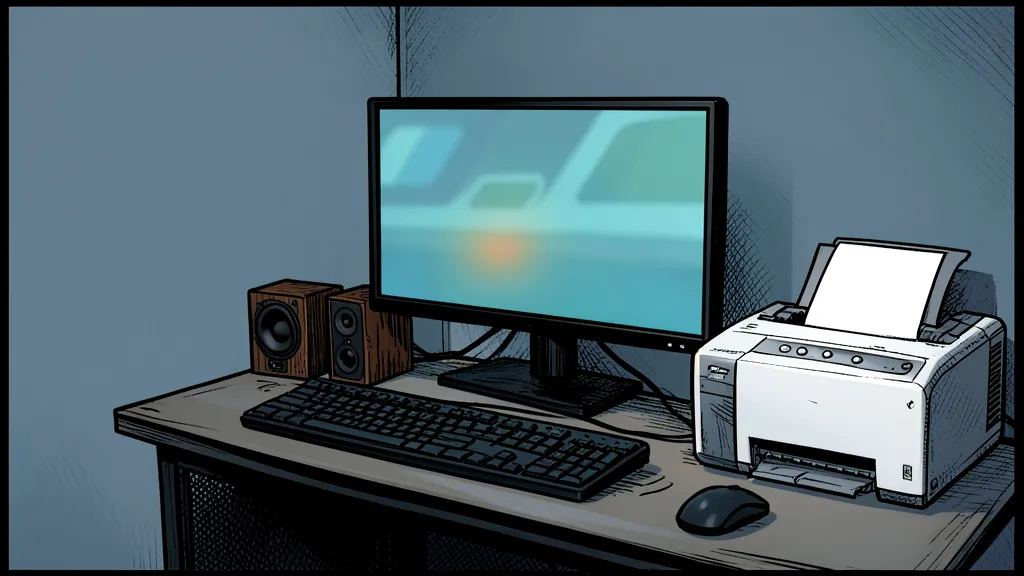
Monitors, speakers and printers are output devices, and they do the opposite job of input devices. Instead of turning what you do into a signal, they turn the computer’s signals back into something you can see, hear or hold. It’s the same translator from the input post, just working in reverse.
The screen
A screen is really a huge grid of tiny points of light called pixels. Each pixel gets its own signal telling it exactly which color to show and how bright to be, and a typical screen has millions of them. It doesn’t just draw the picture once, either. It redraws the whole image many times every second, and that’s called the refresh rate, measured in hertz, so a 60 hertz screen redraws itself 60 times a second.
Speakers
Speakers take an electrical signal and turn it back into vibrations in the air, which are the sound waves your ears pick up. It’s the exact reverse of what a microphone does: there, sound became a signal, and here, the signal becomes sound again.
The printer
The printer is the one output device that leaves the digital world behind completely. It takes a signal and turns it into something physical and permanent, ink or toner placed precisely on paper.
Why it matters
Knowing that these are translators helps when something goes wrong. A flickering screen often points to a loose cable or a refresh-rate setting, not the computer thinking slowly. And a paper jam is exactly what it sounds like, a translator that got physically stuck partway through delivering its output.
What to remember
Input turns what you do into a signal the computer can use, and output turns the computer’s signal back into something you can see, hear or hold. Put them together and you have a full conversation.
Hope you found this helpful. You’ll find more free prompts and articles on dos2ai.com.
Want the next one by email? Sign up for free lessons.