I’m Ian, tech-obsessed since I was eight. Let’s get you up to speed, fast.
This is part of Claude Basics, and it’s the step where Claude stops being only a chat window and starts working with the files on your computer. Claude Code runs in Terminal, it reads the folder you start it in, and with your OK it can write files, fix things and run commands for you. It takes a few minutes to install, and there’s one choice along the way, subscription or Console, that’s worth understanding before you click.
Before you start
- A paid plan or an API account. At the time of this publishing, Claude Code needs a paid Claude plan (Pro, Max, Team or Enterprise) or a Claude Console account with API credits. API, short for application programming interface, is the way programs talk to each other, and the Console is Anthropic’s account for that. The free plan doesn’t include Claude Code. I’m not putting prices here, because they change.
- A Mac on macOS 13 or later, with 4 GB of memory or more. Nearly any Mac from the last several years qualifies.
- Terminal. It’s already on your Mac. If you grew up on an MS-DOS prompt like I did, it’ll feel familiar: you type a command, press Return, and the computer answers.
- Rather not use Terminal at all? Claude Code also comes inside the Claude desktop app. This post is the Terminal way, which is what my videos use.
The steps
1. Open Terminal. Press Command-Space, type Terminal, and press Return. A plain window with a blinking cursor opens.
2. Paste the install command. Copy this line exactly, paste it into Terminal, and press Return:
curl -fsSL https://claude.ai/install.sh | bashIt comes straight from Anthropic’s own setup page. Only paste install commands from the source, never from a random website or a message someone sent you.
3. Give it a minute. The installer doesn’t show a progress bar while it downloads, so it can look stuck. It isn’t. Wait until the prompt comes back.
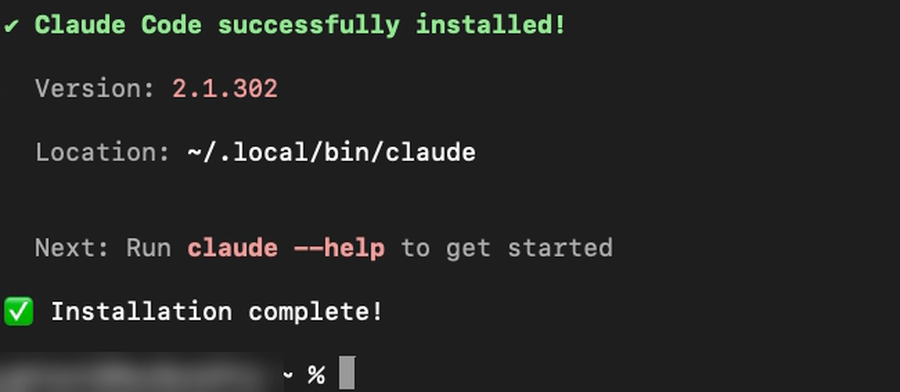
4. Check that it worked. Open a new Terminal window with Command-N (the old window doesn’t know about the new program yet), type claude --version, and press Return. If you see a version number, it’s installed. For a fuller check, type claude doctor: it looks over the install and your settings and tells you if anything needs fixing.
5. Start it in an empty folder. Type mkdir ~/demo && cd ~/demo and press Return. That makes a practice folder and moves into it. Then type claude and press Return. Starting in an empty folder means there’s nothing for Claude to read yet, which is a good way to meet it.
6. Pick how you’ll log in. The first time, Claude Code may ask you to pick a color theme, then asks you to select a login method: Claude account with subscription or Anthropic Console account (billed by what you use). There’s a third option for big cloud platforms, which you can ignore. More on that choice below. If you’re just starting out, pick your subscription.
7. Sign in. Your browser opens on the Claude sign-in page. If it doesn’t, press c in Terminal to copy the sign-in link, and paste it into your browser. Treat that link like a password: don’t share it. Sign in the way you normally do. Depending on your account, there may be extra steps, like a password or a security code sent to your email; follow them through. Then a page says Claude Code would like to connect to your Claude account: click Authorize. Back in Terminal, you’ll see “Login successful”. Press Return.
8. A few first-run questions. Claude Code shows some security notes (press Return), offers its recommended terminal settings (yes is fine), and asks whether you trust the files in this folder. For your empty practice folder, pick “Yes, I trust this folder”. You’re at the Claude Code prompt and ready to go.
Subscription or Console?
This is the one choice in the whole install that’s worth slowing down for.
- Subscription (Pro or Max) is one monthly price. You get a set amount of usage that resets on a schedule, and when you hit the limit, you wait for the reset, unless you choose to turn on usage credits, which are billed on top. Leave those off and nothing surprises you on a bill.
- Console (the Claude Console, Anthropic’s developer account) bills you for exactly what you use. That suits apps and teams, but a long session can add up. You can sign in with your Console account without making an API key, a long secret code that lets a program use your account, much like a password.
For most people starting out, the subscription is the simpler, more predictable choice. One thing to watch: if you’ve ever set an ANTHROPIC_API_KEY on your Mac for another project, Claude Code asks whether to use it, and if you say yes, it bills that API account instead of your subscription. Not sure which one you’re on? Type /status inside Claude Code, and it tells you.
Your first prompt
Now give it a small first job, in your empty practice folder, so you can see it work without any risk. Copy this, paste it at the Claude Code prompt, and press Return:
Make a file called hello.md that says, in two short lines, what you can help me with. Then tell me what you did.It writes the file, tells you what it did, and you can open hello.md to read it. If it asks permission first, say yes. It’s your practice folder.
If something goes wrong
- It looks frozen during the install. That’s the missing progress bar. Give it a minute or two.
- “command not found” when you type
claude. Close Terminal and open a fresh window, so it picks up the new program. If it still isn’t found, the folder it installed to isn’t on your Mac’s search path yet, and the setup page on Claude Code Docs has the fix. - Something else seems off. Run
claude doctorin Terminal. It checks the install and suggests fixes. - It’s billing the wrong account. Check
/statusand the API key note above.
What slowed me down
Nothing, this was easy!
What I learned
- Install from the source. The command above comes from Claude Code Docs. Treat any other copy of it with suspicion.
- Start small and empty. A practice folder is the safest first step. Claude Code reads the folder you start it in, so only start it in folders you’re OK with it seeing. Security should always be a concern.
- Know what it does on its own. Since recent versions, auto mode is the default: Claude Code checks each action for risk, runs the ones it judges lower-risk, and blocks the rest. Press Shift-Tab to switch modes if you’d rather it asked first.
- Know which account is paying.
/statusanswers that in a second.
What’s next
Next, read What is CLAUDE.md?, the small file that tells Claude Code about your project, so you don’t have to repeat yourself every session. If you’d rather work inside Visual Studio Code, Claude Code has an extension for that too, and it’ll get its own video.
The video for this one is on YouTube: Install Claude Code on a Mac (Claude Basics 1).
Hope you found this helpful. You’ll find more free prompts and articles on dos2ai.com.
Written in October 2026, checked against Claude Code Docs on 21 October 2026, recorded with Claude Code 2.1.302. Claude Code changes fast, so always check the latest on Claude Code Docs.
Not affiliated with or endorsed by Anthropic. I’m an independent user.