For fun, I’m starting a short series called Claude Basics, and the first episode is the simplest one: getting the Claude app onto a Mac. It only takes a few minutes, but a couple of the screens can make you stop and wonder whether you’re doing it right, so here’s what each one means.
Why start here
Everything else I’m going to show you, from Claude Code to scheduled tasks, starts with having Claude on your computer. You can use Claude in a web browser, but the desktop app sits in your Dock, opens in a click, and is where I do most of my work. When I was teaching MS-DOS, installing a program meant a stack of floppy disks and a lot of patience, so a few clicks and one password still feels like a small miracle.
Video coming soonThe install, start to finish, on YouTube
The steps
1. Go to the download page. Open claude.com/download in your browser. (The older address, claude.ai/download, takes you to the same page.) Click Download for macOS. You don’t need an account to download it, and the app works on every plan, including the free one.
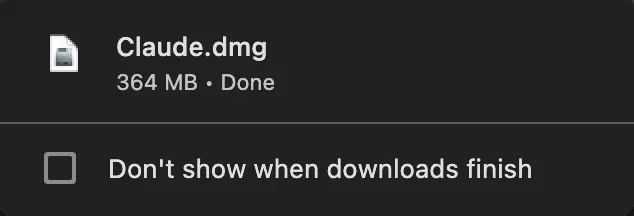
2. Open the download. You’ll get a file called Claude.dmg in your Downloads folder. Open it, and a small window shows the Claude icon and your Applications folder.
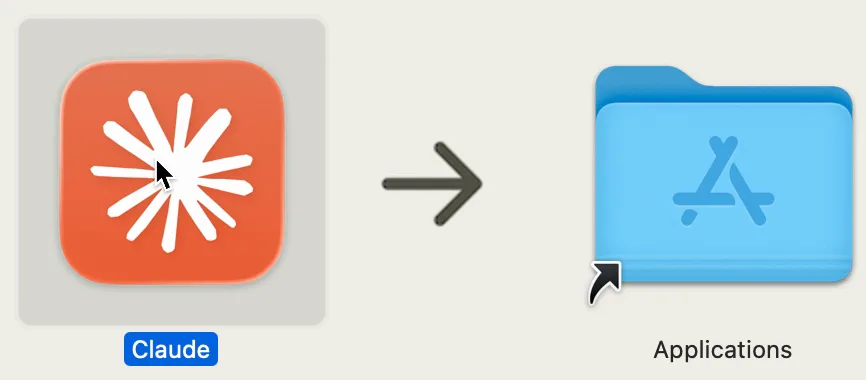
3. Drag Claude into Applications. Drag the icon onto the folder. Your Mac may ask for a password here. That’s your Mac’s own login password, not anything to do with Claude, and not every Mac asks for it.
4. Open Claude. Find Claude in Launchpad or in your Applications folder and click it.
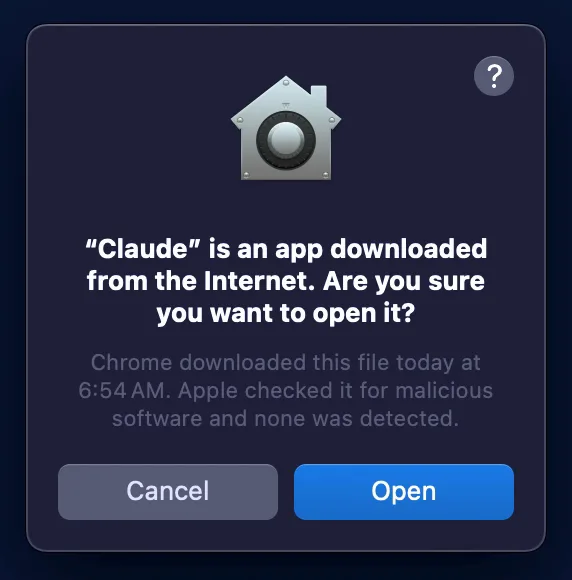
5. Say yes to the warning. Your Mac shows “Verifying ‘Claude’…” for a moment, then a box that says “‘Claude’ is an app downloaded from the Internet. Are you sure you want to open it?” Click Open. This only shows up the first time you open an app that came from the internet, and the smaller text underneath says Apple checked it for malicious software and none was detected.
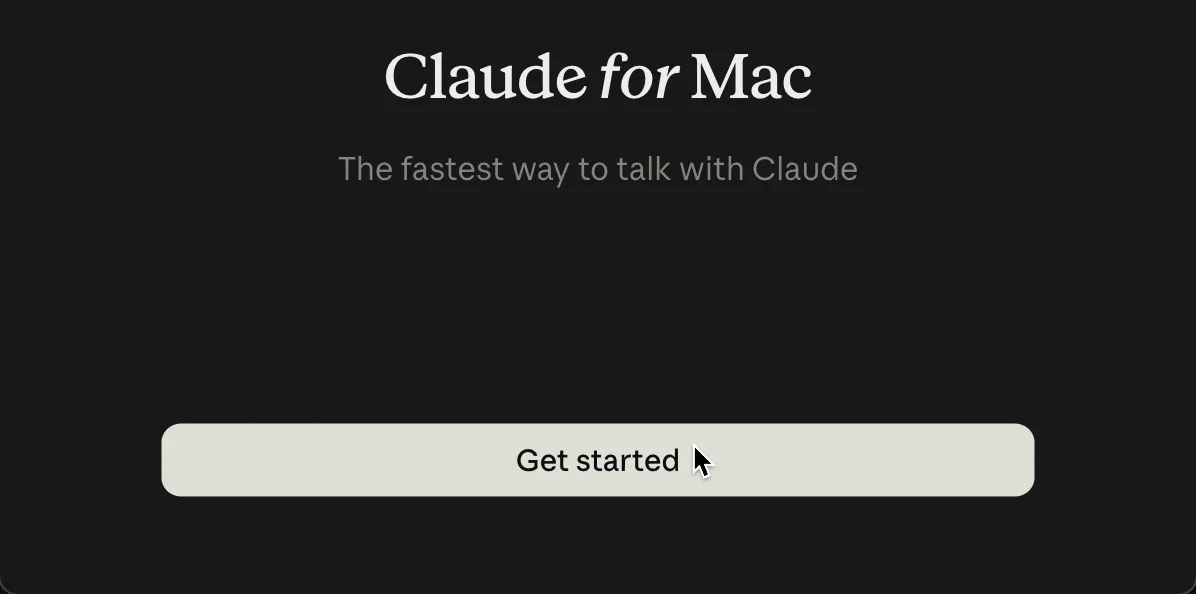
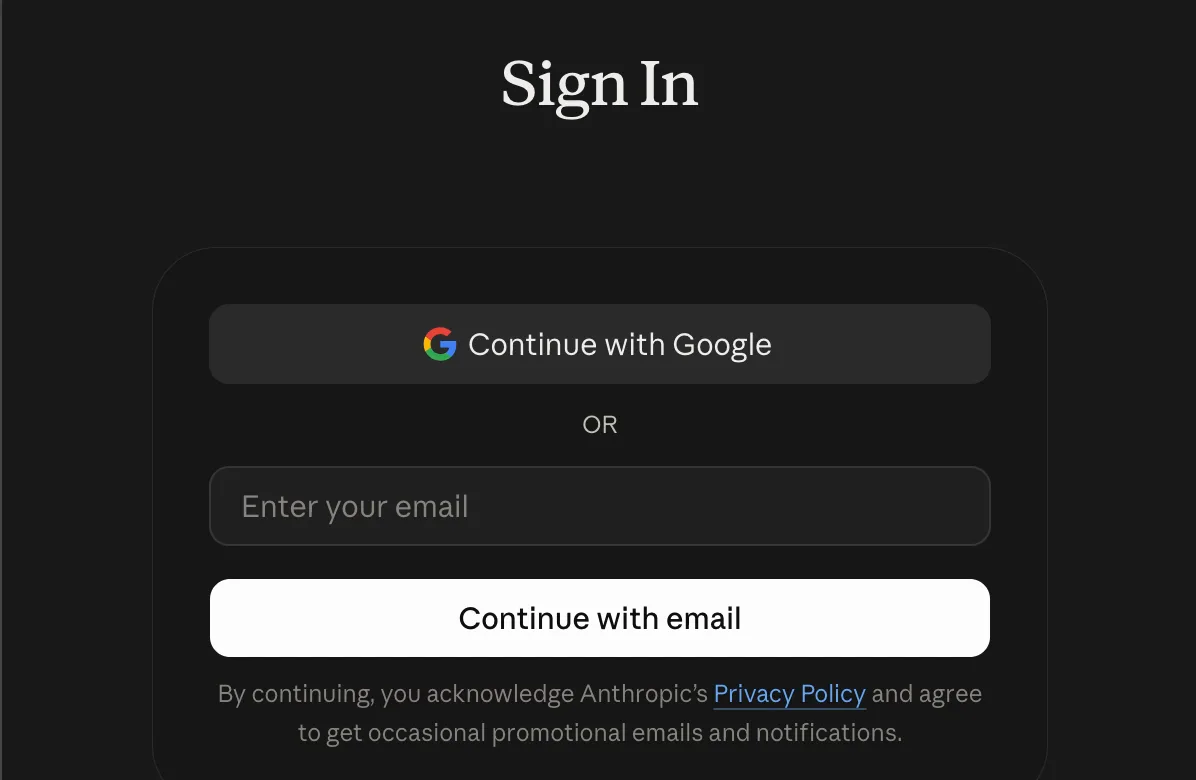
6. Sign in. Click Get started, then Sign In, and type your email. Claude sends you an email with a link, and when you click it, you’re signed in. If you’re new, you’ll set up your account at this point.
7. Pick a plan. Free or paid is up to you. The free plan is limited. Paid plans add more usage and features such as Claude Code. I’m not putting prices here because they change. At the time of writing and recording the video I was using the lowest level of paid Claude subscription.
8. Say hi. Type something small to make sure it works. I typed “Say hi in one line,” and a moment later Claude said hi back, so I knew everything was set up.

What slowed me down
The email took a while. I sat on the “click the link” screen for close to a minute before the email showed up. If it’s slow for you, give it a minute and check your spam folder.
The warning looks scarier than it is. The first time you see “Are you sure you want to open it?”, it’s easy to think something went wrong. It’s the normal check your Mac does for anything you download from the internet.
The password question. When the Mac asked for a password, I had to stop and think about which one it meant. It’s your Mac’s login password every time.
What I learned
- Download from the source. Get the app from claude.com/download, not from a link someone sends you.
- Treat the sign-in link like a password. The link in that email signs you straight in, so don’t forward it, and don’t share a screenshot that shows it. I cut it out of my own video for exactly that reason.
- Start small. One short message is all it takes to know it’s working, and you can explore the rest from there.
- File access matters. Before you give Claude access to files or folders, be sure you’re OK with that data possibly crossing the internet. Security should always be a concern.
It’s a small step, but everything else in the series builds on it, and I hope you find it useful.
Not affiliated with or endorsed by Anthropic. I’m an independent user.