I’m Ian, tech-obsessed since I was eight. Let’s follow one press of the power button all the way to the picture on your screen.
You press one button, and a few seconds later there’s a picture on your screen. In between, a whole line of parts each takes a turn, one after another. This post puts them together in the order your computer uses them, so by the end you can walk through the whole thing and name the part doing the work at every step.
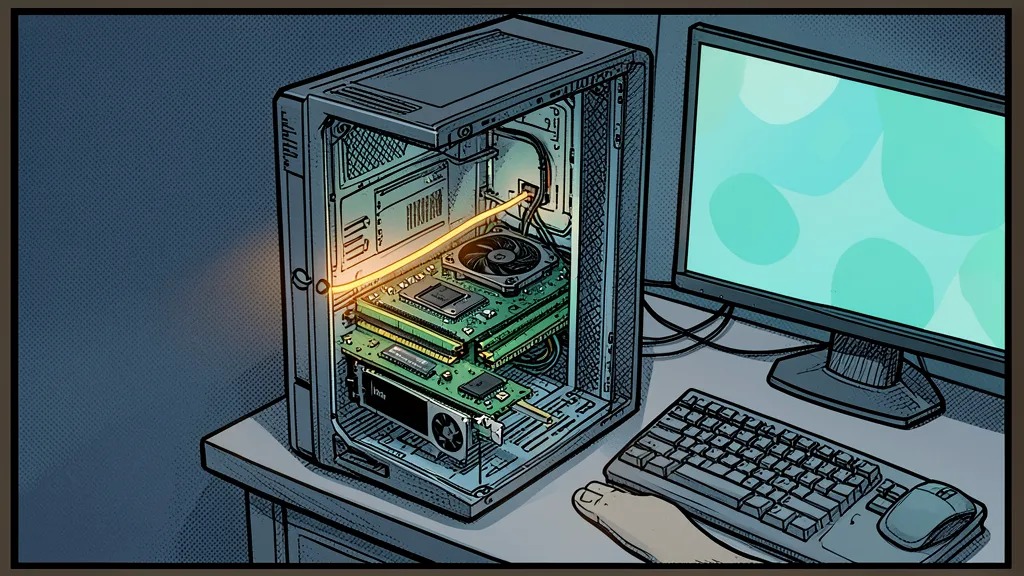
Power on: the motherboard wakes up
It starts when you press the power button. Power flows into the motherboard, the big main board that every other part plugs into. The motherboard doesn’t compute anything itself. Its whole job is letting every part talk to every other part, and getting power to each of them while it’s at it. Keep that in mind, because it’s carrying something at every step below.
BIOS or UEFI: the first thing to run
Before Windows or macOS even starts, something else has already run. That’s the BIOS, or on newer computers, UEFI. It’s firmware, which is small, permanent code, and it doesn’t live on your drive. It’s stored on its own chip, right on the motherboard, and the CPU runs it first, before there’s any operating system to run.
Its first job is called POST, short for power-on self-test. It runs down the list, the CPU, the RAM, the graphics and the drives, and checks that each one is there and answering before it trusts any of them. Once everything checks out, it looks for a drive with an operating system on it and hands control over. If you’ve ever seen a message like “no bootable device found”, that came from the BIOS, because the operating system never got the chance to load.
The CPU takes charge
Now the CPU, short for central processing unit, takes charge. It’s the part of your computer that actually does the thinking, and it does it one simple instruction at a time: add these two numbers, move this piece of data, check whether a switch is on or off.
It handles each instruction in three steps. It fetches the next one, decodes it to figure out what it’s asking for, and executes it. Then it does it all again, billions of times every second, which is why it feels instant even though no single instruction is hard.
Storage hands over what’s needed
The operating system and your apps don’t start out in the CPU. They live in storage, your hard disk drive (HDD) or solid-state drive (SSD). Storage keeps everything, even with the power off, and that’s called non-volatile. A hard drive does it with a spinning magnetic disk and a little arm that moves to read and write, while an SSD uses memory chips with no moving parts, which is why it’s so much faster.
Even an SSD is slow to reach into compared with what the CPU needs, though, so the CPU doesn’t work straight out of storage. Instead, what’s needed gets copied somewhere closer.
RAM holds the work in progress
That somewhere is RAM, short for random access memory. It sits right by the CPU and it’s dramatically faster than storage, so it holds the work in progress, meaning everything that’s open right now.
The catch is that RAM is volatile, so the instant the power goes off, everything in it vanishes. That’s why closing an app without saving loses your work, because it was only ever in RAM and it never made it to storage.
Input devices tell it what you want
Once the operating system is up, the computer’s waiting on you. Keyboards, mice, microphones and touchscreens are input devices, and they all do the same job: they turn something physical, like a press, a click, a sound or a touch, into an electrical signal the computer can use. Every key on a keyboard sends its own code, a mouse reports how far and which way it moved, and a touchscreen turns the exact spot your finger touched into coordinates.
The motherboard and expansion slots carry the signals
That signal travels across the motherboard to the CPU, along the thin copper lines you can see on the board, called traces. This is the motherboard doing its one job again, connecting everything.
Some parts plug in through expansion slots, which are long connectors left empty on purpose so you can add something later. Almost all of them today use one standard called PCIe. The most common card to go in one is a graphics card, whose main chip, the GPU (graphics processing unit), is built to draw pictures fast. Plenty of computers use graphics built in instead, which handle everyday stuff just fine.
Output devices show you the result
The finished picture goes out to an output device. A monitor is a huge grid of tiny dots of light called pixels, and each pixel gets its own instructions for what color to be and how bright. The screen redraws the whole picture many times every second, which is called the refresh rate, so sixty hertz means sixty times a second. Speakers turn signals back into sound, and printers put it on paper. Output devices are how your computer talks back to you.
Ports and connectors link it to everything else
All of this connects to the outside world through ports, and every one of them leads straight back to the motherboard. Each port’s shape tells you what it’s built to carry: USB for almost anything, from keyboards to drives to charging, HDMI for video and usually sound to a screen, and Ethernet for a fast, steady wired connection to your network. So if a cable won’t push in, don’t force it, because the mismatch is the design doing its job.
What to remember
- BIOS or UEFI wakes the computer up, checks the hardware, and hands control to the operating system.
- The CPU does the thinking, one instruction at a time, billions of times a second.
- Storage keeps everything, even with the power off.
- RAM holds the work in progress, and forgets it when the power goes off.
- Input devices tell the computer what you want.
- The motherboard and expansion slots carry the signals between every part.
- Output devices show you the result.
- Ports and connectors link it to everything else.
The picture on your screen isn’t one thing happening. It’s every part doing its one job, in the right order.
Next up: Tier 2
That’s the hardware. Tier 2 is Software and Interaction: what the operating system actually does, how apps differ from it, what booting up really means, how files and folders work, and how to figure out what’s wrong when something breaks.
Hope you found this helpful. You’ll find more free prompts and articles on dos2ai.com.
Want the next one by email? Sign up for free lessons.